

Effective October 31, 2025, Microsoft updated the licensing terms for Microsoft Defender for Office 365, clarifying that every user or mailbox benefiting from its protection must have a license. This change underscores the need for organizations to license all accounts that use Defender for Office 365 security features.
What is Microsoft Defender for Office 365?
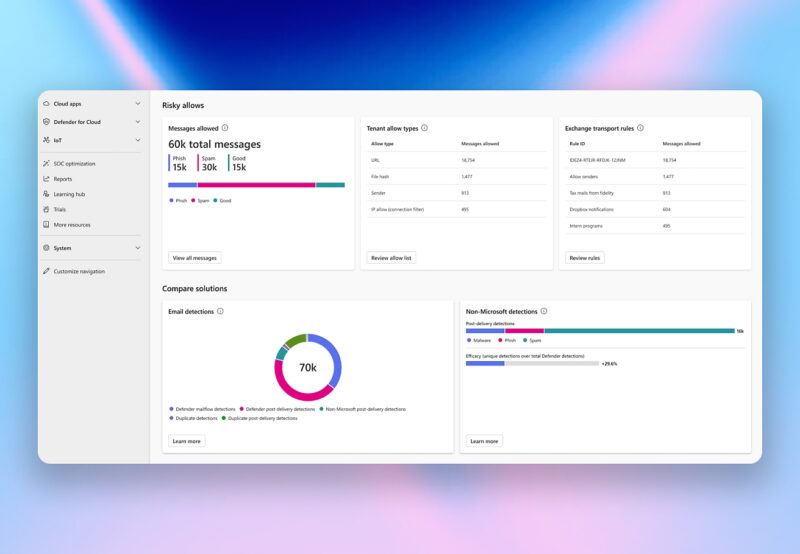
Microsoft Defender for Office 365 is a cloud-based security solution that protects your organization’s Office 365 environment from advanced threats. It safeguards email and collaboration tools in Microsoft 365 (such as Exchange Online email, SharePoint Online, OneDrive for Business, and Microsoft Teams) against malware, phishing, and other attacks. Defender for Office 365 provides multiple layers of defense to prevent malicious content from reaching users: it can detect suspicious email attachments, block unsafe links in messages, and use advanced threat intelligence to identify phishing attempts. By scanning content before it reaches mailboxes or teams, Defender for Office 365 helps stop attacks like ransomware, credential phishing, and business email compromise. This service was formerly part of Office 365 Advanced Threat Protection, often abbreviated as ATP, but is now known as Defender for Office 365.
In summary, Microsoft Defender for Office 365 provides organizations with tools to detect, block, and remediate threats across email and file-sharing platforms, enhancing overall security for Microsoft 365 users.

Licensing
Microsoft’s updated terms emphasize proper licensing for Defender for Office 365. In essence, every user account or mailbox that benefits from Defender for Office 365 protection needs its own license. This includes scenarios that might not have been obvious at first. According to the clarified rules, you should ensure licensing in the following cases (not an exhaustive list):
- User Mailboxes: If a user’s mailbox is protected by Defender for Office 365 (for example, receiving Safe Attachments scanning and anti-phishing protection), that user must have a Defender for Office 365 license assigned. This is straightforward for regular employees with mailboxes – each of those users should be licensed.
- Shared Mailboxes Access: If you have shared mailboxes (or any mailbox accessed by multiple people) that are protected by Defender for Office 365, each person who accesses those mailboxes must have a license. In other words, even though a shared mailbox itself doesn’t require a license, any user who reads or sends emails from that protected mailbox is considered to be benefiting from the Defender for Office 365 features and therefore needs to be licensed for it.
- SharePoint, OneDrive, Teams with Safe Attachments: If your organization has enabled the Safe Attachments feature for SharePoint, OneDrive, or Microsoft Teams (this feature scans files uploaded to these services for malware), any user who can open or share files in those protected locations should have a Defender for Office 365 license. This is because those users are indirectly benefiting from malware protection on files. For example, if Safe Attachments is turned on for a SharePoint document library that the whole company uses, effectively all users with access to that library are getting Defender’s protection and need to be licensed.
- Microsoft 365 Apps or Teams with Safe Links: Similarly, if you turn on the Safe Links feature in Microsoft 365, it can apply to Office applications (like Word, Excel, PowerPoint in Microsoft 365) and to Microsoft Teams. Any user who is covered by Safe Links protection (for instance, clicking links in a Teams chat or an Office document and having them checked by the system) should have a Defender for Office 365 license. For example, if you enable Safe Links for all Teams users so that every posted link in Teams is verified, then each of those users should be licensed.
In short, be mindful of tenant-wide settings: if a Defender for Office 365 feature is enabled broadly (tenant-level, meaning across your whole organization), it may affect many users. The updated terms warn administrators to either scope these protections to licensed users only or license all users who are affected. While it is technically possible to configure policies that include or exclude certain users (for example, you might choose to only enable Safe Attachments for a specific group of users), Microsoft’s clarification implies that any unlicensed user inadvertently covered by a protection would be out of compliance.
It’s a reminder to be cautious: if you turn on a security feature globally, double-check that all covered users have the proper license.
SCHNEIDER IT MANAGEMENT, as a licensing expert, advises organizations to review their current Microsoft 365 setup in light of this change. We recommend performing a quick check of Defender for Office 365 settings and comparing it against your license assignments. If you’re unsure about how these rules apply to your environment or if you need to adjust your licensing, it’s wise to consult with a licensing specialist at SCHNEIDER IT MANAGEMENT.
Expert advice can ensure you remain fully compliant without unnecessary overspending, by tailoring which accounts have Defender for Office 365 enabled and licensed.
More information
For further details, you can refer to the official Microsoft documentation on the updated licensing terms https://learn.microsoft.com/en-us/office365/servicedescriptions/microsoft-365-service-descriptions/microsoft-365-tenantlevel-services-licensing-guidance/microsoft-365-security-compliance-licensing-guidance#licensing-terms
For our Microsoft page, please visit: https://www.schneider.im/software/microsoft.
Please contact us for expert services on your specific Microsoft software and online services requirements and to request a quote today.