

October 9, 2025: Microsoft Teams introduced Intelligent Recap and Audio Recap, two new features that use Artificial Intelligence (AI) to summarize meeting content. Intelligent Recap automatically generates a meeting summary and highlights key points after your meeting, while Audio Recap produces a podcast-style audio summary that lets you listen to the important information. These capabilities help users quickly catch up on missed meetings and focus on key decisions and tasks without reviewing full recordings or lengthy transcripts.
Audio Recap is currently in public preview and, like Intelligent Recap, is available only to users with the appropriate Microsoft Teams Premium licensing enabled.

What is Intelligent Recap?
Intelligent Recap is an AI-powered meeting recap feature in Microsoft Teams. After a Teams meeting (or call) ends, Intelligent Recap automatically creates a personalized summary of the meeting for you. It highlights the key discussion points, decisions made, and any follow-up actions or tasks identified during the call. Instead of manually taking notes or watching a full recording, you can rely on Intelligent Recap to get the important information at a glance. The recap is accessible in the Recap tab of the meeting from your Teams calendar or meeting chat once the meeting is over. This allows you to review what happened quickly, focusing on what was discussed and what needs follow-up, without having to replay the entire meeting.
Key Features of Intelligent Recap
- AI-Generated Meeting Notes: Automatically written summary notes of the meeting discussion, highlighting the most important points and decisions. These notes are generated by AI to capture what was discussed without anyone needing to take manual notes.

- AI-Recommended Tasks: A list of follow-up tasks or action items identified during the meeting. The AI scans the conversation for promises or assignments (for example, “I will send the report”) and compiles them into an actionable to-do list for you.
- Personalized Timeline Markers: Markers on the meeting recording’s timeline that show moments most relevant to you. For example, markers indicate when your name was mentioned, when you joined or left the meeting, and when someone shared their screen. Clicking a marker jumps you to that exact point in the recording. (Only you see your own personal markers.)
- Speaker Timeline Markers: A visual timeline of who spoke when during the meeting. The recording is annotated with segments labeled by each speaker’s name. This lets you skim the meeting by speaker or jump to a moment when a particular person was talking.

- Meeting Chapters and Topics: The meeting recording and transcript are automatically divided into sections by topic. These AI-generated chapters let you navigate the meeting by subject. You can jump straight to the section where a specific topic was discussed, rather than having to listen to the whole meeting end-to-end.
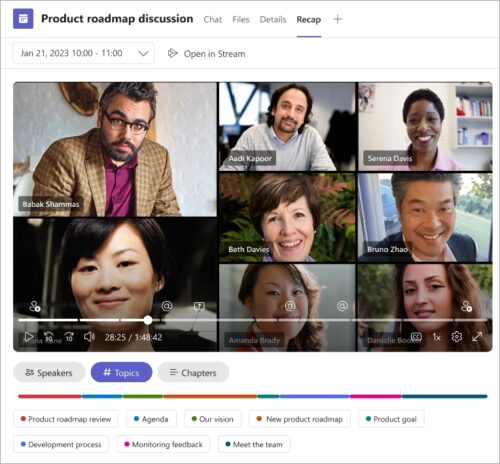
All the above Intelligent Recap features appear in the Recap tab after the meeting, alongside the recording and transcript, to help you review the meeting efficiently.
What is Audio Recap?
Audio Recap is a new Teams feature (currently in preview) that creates an audio summary of your meetings. It uses AI to convert your meeting’s transcript into a spoken recap – essentially turning your meeting into a short podcast that you can listen to. With Audio Recap, you can quickly review the highlights of one or several meetings by listening to an automatically generated audio recording, instead of reading through notes or watching videos. This is especially useful for busy users or anyone who prefers to catch up on meetings during a commute or while multitasking, since you can simply put on headphones and hear the important points that were discussed.
Key Features of Audio Recap
- Podcast-Style Summary: Audio Recap provides an engaging, podcast-like recording of the meeting’s key highlights. It takes the meeting transcript and produces a spoken summary in a natural, conversational style, so you can hear the meeting highlights in 5–10 minutes instead of sitting through an hour-long call.
- Multiple Meetings in One: You can combine highlights from up to eight meetings into a single audio recap. This means if you missed several meetings, you can generate one audio recap that stitches together the important points from all of them. It’s like having a single podcast episode for your day’s meetings.
- Available on Desktop and Mobile: Users can generate and listen to audio recaps on Teams desktop or mobile This flexibility allows you to catch up on meetings on the go – for instance, you might generate the recap on your computer, then listen to it from the Teams app on your phone during your commute.
- Stored in OneDrive for 60 Days: Each audio recap file is saved to your OneDrive (in a folder under “Recordings/AudioRecaps”) and kept for 60 days. The audio recap is private to you, so others cannot access your recap file. After 60 days, the file will expire automatically, though you can save a copy elsewhere if needed. You can also manually delete an audio recap from OneDrive at any time, which will remove it from Teams as well.
- Language Support: Currently, Audio Recap only supports English for the generated audio output. Transcripts in other languages won’t yet produce an audio recap. Microsoft plans to add more languages and locales over time. Despite the language limitation, you can include meetings with non-English speech in an audio recap – the catch is the recap narration will be in English.
Note: Audio Recap only works for meetings that have a transcript or recording. If a meeting wasn’t transcribed, an audio recap cannot be generated for it. It’s recommended to enable Live Transcription in Teams meetings to make use of these AI recap features.

Licensing
Intelligent Recap and Audio Recap are premium features that require specific Microsoft Teams licenses:
- Intelligent Recap: To access Intelligent Recap, a user must have either a Teams Premium add-on license or a Microsoft 365 Copilot license enabled on their account. These licenses unlock the AI-driven recap capabilities in Teams meetings and calls. If a user doesn’t have one of these licenses, they will not see the Intelligent Recap features (AI notes, tasks, timeline markers, etc.) after meetings.
- Audio Recap: The Audio Recap feature specifically requires a Microsoft 365 Copilot Even with Teams Premium, the audio podcast summary functionality will only be available if the user is licensed for Microsoft 365 Copilot. Teams Premium covers the Intelligent Recap text-based features; the audio summary is part of the Copilot services. Ensure your organization’s Microsoft 365 license package includes Copilot for those users who need the Audio Recap feature.
- Enable Recording/Transcription: In addition to the right license, the meeting must be recorded or transcribed for these recap features to work. Transcription should be turned on during the meeting (or a recording made) so that the AI has the data it needs to generate notes and audio highlights. Without a transcript, Intelligent Recap cannot produce AI notes or tasks, and Audio Recap cannot create an audio summary. For the best experience, Microsoft recommends recording the meeting and using live transcription. IT administrators may need to ensure that recording and transcription policies are enabled for users who have these features.
Because enabling these premium features may involve additional licensing costs or changes to your subscription, it’s wise to get professional guidance. We recommend consulting with a licensing expert at SCHNEIDER IT MANAGEMENT, to get advice on the optimal way to license Intelligent Recap and Audio Recap for your organization. We determine the most suitable licensing option and ensure compliance with Microsoft’s licensing terms.
More Information
For further details on these new Teams recap features, you can refer to the official Microsoft documentation and announcements below:
- Microsoft Learn – Intelligent recap for Teams calls and meetings: https://learn.microsoft.com/en-us/microsoftteams/intelligent-recap-calls-meetings
- Microsoft Support – Frequently asked questions about meeting audio recap: https://support.microsoft.com/en-us/office/frequently-asked-questions-about-meeting-audio-recap-78eed823-0acc-4c7d-bcc0-d839dc23d406
- Microsoft Support – Recap in Microsoft Teams (overview of recap features and how to use them): https://support.microsoft.com/en-us/office/recap-in-microsoft-teams-c2e3a0fe-504f-4b2c-bf85-504938f110ef
- Microsoft Inside Track Blog – ‘Putting your meetings in your earbuds’: How Microsoft uses the Audio Recap feature (Oct 9, 2025): https://www.microsoft.com/insidetrack/blog/putting-your-meetings-in-your-earbuds-how-we-now-catch-up-on-missed-meetings-with-audio-recap-podcasts/
For our Microsoft page, please visit: https://www.schneider.im/software/microsoft.
Please contact us for expert services on your specific Microsoft software and online services requirements and to request a quote today.